Learning how to make bingo cards comes down to one rule and five tools. The rule is that every player needs a card with the same words or numbers in a different arrangement. The tools are a word processor, a spreadsheet, a design app, a printed template or a dedicated card maker. This guide walks through all five, shows a spreadsheet formula that shuffles a word list, and uses simulations to answer a question most guides skip: how long should your word list be?
In short: for a 5 by 5 card with a free center you need at least 24 words, and 30 to 50 is much better. A word processor or Google Docs works for a handful of cards. A spreadsheet can shuffle one list into as many cards as you like. The free bingo card generator does the shuffling and the printing for you in one step.
What every set of bingo cards needs
Before choosing a tool for how to make bingo cards, it helps to know what a good set looks like. Three things matter more than the tool does. The first is a different arrangement on every card. If two players hold identical cards, they win at the same moment every time, and the game stops being fun.
The second is a long enough list. A 5 by 5 card has 25 squares, and the usual free center leaves 24 to fill. The third is cards that can be read: big enough text, equal squares and a clear title, so that a child, a grandparent or a tired party guest can find a word at a glance.
The size of the grid sets the number of words. A 3 by 3 card needs 8 or 9, a 4 by 4 card needs 16, a 5 by 5 card with a free space needs 24, and a 7 by 7 card needs 48 or 49. The blank bingo cards page has empty grids in each size if you would rather fill them in by hand. Everything in this guide uses the standard 5 by 5 card, but the same steps scale to any size.
| Grid | Squares | Words needed with a free center | Words needed with no free space |
|---|---|---|---|
| 3 by 3 | 9 | 8 | 9 |
| 4 by 4 | 16 | not used (no center) | 16 |
| 5 by 5 | 25 | 24 | 25 |
| 6 by 6 | 36 | not used (no center) | 36 |
| 7 by 7 | 49 | 48 | 49 |
How to make bingo cards: five methods compared
The five methods differ mainly in how much typing you repeat for each extra card. For one card, they all take about the same effort. For thirty cards, the difference is large. The table counts the squares you must handle by hand for 30 different cards, which is a simple measure of work rather than a timed result.
| Method | Best for | Shuffles for you | Squares you handle by hand for 30 cards | Works offline |
|---|---|---|---|---|
| Word processor (Word) | A few cards for a small group | No | 24 words typed once, then moved around 29 times | Yes |
| Google Docs | Sharing a card to edit with others | No | Same as Word | Only with offline mode turned on |
| Excel or Google Sheets | Many cards from one list | Yes, with a formula | The list typed once; the formula and printing do the rest | Excel yes; Sheets only with offline mode turned on |
| Canva or a design app | Highly decorated single designs | No | Up to 750 text boxes if you edit every card | No |
| Free card maker (this site) | Any number of different cards with words, emoji or pictures | Yes | The list typed or pasted once | Needs the page loaded; nothing is uploaded |
Make bingo cards in Word
You can make bingo cards in Word with nothing more than a table. It is the oldest answer to how to make bingo cards, and it works on any computer that has a word processor. It suits a single design or a handful of cards for a small party.
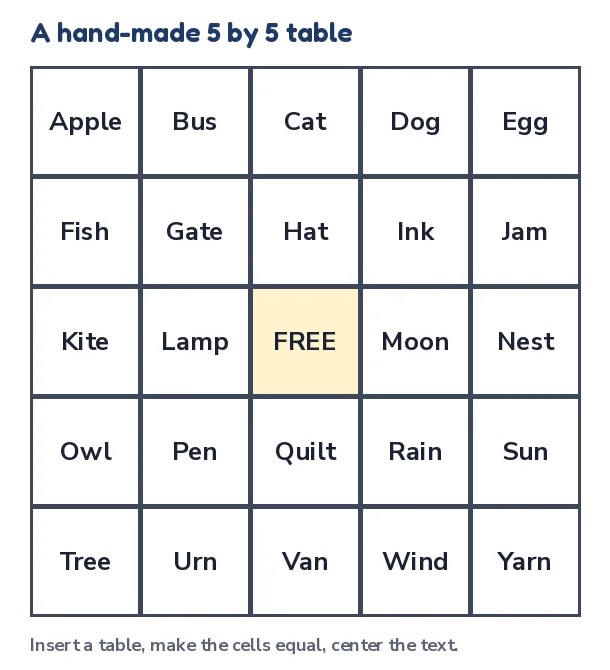
- Open a blank document and choose Insert, then Table, and drag out a 5 by 5 grid.
- Select the whole table and, in the Layout tab, set the same height and width for every cell, for example 1.2 inches. Square cells print better than stretched ones.
- Open the table properties and set the cell alignment to center, both across and down. Increase the font size until a long word still fits on two lines.
- Add a title above the table, such as “Spring Bingo”. Type FREE in the middle square and shade it.
- Type 24 words into the other squares. Then copy the whole table and paste it below or on a new page.
- On the copy, move the words around so the arrangement is different. Repeat for every extra card.
The weakness of this method is the last step. Moving 24 words around by hand for each card is slow, and people unconsciously repeat patterns, which makes cards more alike than a random shuffle would. Word also has a mail-merge feature that can fill a table from a list, but it does not shuffle the order. If you need more than six or eight cards, a spreadsheet is a better starting point.
Bingo cards in Google Docs
How to make bingo cards in Google Docs is almost the same as in Word, and the big advantage is sharing. Several people can type into the same document, which is handy when a classroom or a family adds items to the list together.
- Choose Insert, then Table, and pick 5 by 5.
- Open the table properties from the right-click menu. Set a column width and a minimum row height so the squares are equal, and set the cell vertical alignment to middle.
- Select the table and center the text with the paragraph alignment button.
- Type the words, then copy the table onto new pages and rearrange.
- Use File, then Download as a PDF, or print straight from the document.
Google Docs has the same shuffle problem as Word. If your list is long, it is quicker to build the cards in Google Sheets and paste each finished card into a Docs page. The next section shows how.
Bingo card template Excel method with a shuffle formula
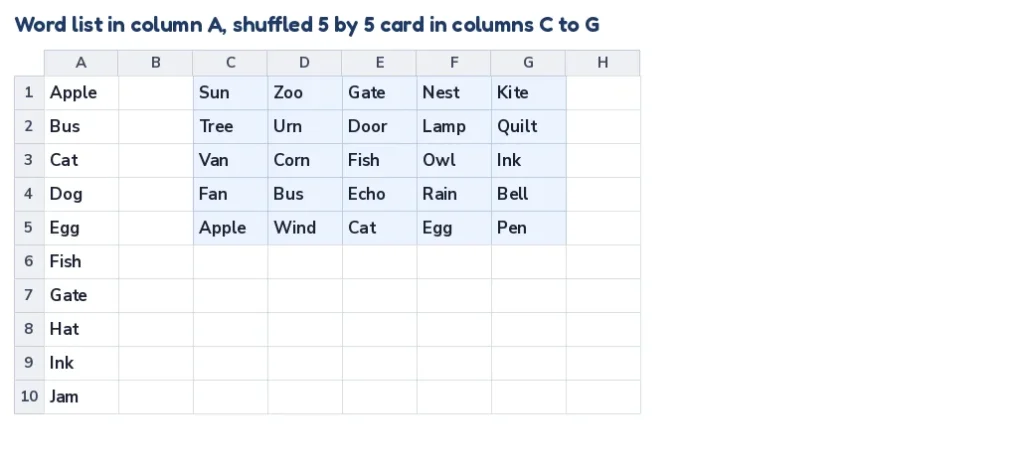
For large sets of cards, a bingo card template Excel file is the first method that really works, because a spreadsheet can shuffle a list on request. The idea is simple. You type your words in one column. A formula sorts them in a random order and lays out the first 25 in a 5 by 5 block. Every time the sheet recalculates, the block shows a new card, so you can paste each card as values, print it and press the recalculate key for the next one.
The simple version that works in every version of Excel
This method needs no new functions and works in older versions of Excel and in Google Sheets. Put your words in column A. In column B, next to each word, type =RAND() and fill it down. Select both columns, sort by column B, and the words are in a random order. Take the first 24 words and copy them into your 5 by 5 layout. Press the recalculate key (F9 in Excel) and sort again for a new card.
One formula for current Excel and Google Sheets
Recent versions of Excel (Microsoft 365) and Google Sheets can do it in a single formula. With 40 words in A2 to A41, enter this in Excel:
=WRAPROWS(TAKE(SORTBY(A2:A41,RANDARRAY(ROWS(A2:A41))),25),5)
and this in Google Sheets:
=WRAPROWS(ARRAY_CONSTRAIN(SORT(A2:A41,RANDARRAY(ROWS(A2:A41)),TRUE),25,1),5)
Each formula uses the same idea as the Microsoft documentation for the RANDARRAY function: it shuffles the list, keeps the first 25 words and wraps them into rows of five. If your version does not know a function it shows a #NAME? error, and in that case use the simple version above.
Type FREE over the middle square after you paste the block as values. To make the cards tidy, set all columns to the same width, turn on wrap text, center the text and add borders, then print each card on its own page or fit four to a sheet with the print scaling options.
This is the most flexible home-made answer to how to make bingo cards, and many teachers use it. Its drawbacks are the layout work for a good-looking card and the fact that you have to paste values before each recalculation so the card does not change after you print it.
Make bingo cards in Canva
If you want to learn how to make bingo cards in Canva, you start from a design rather than a table. Searching for bingo in the template library gives you decorated cards with a grid, a title and artwork. You click each square, type a word and change fonts and colors until the card matches your party. The result looks polished, and Canva makes it easy to add illustrations, photos and logos.
The cost of that polish is repetition. Each card is a separate design, so thirty different cards mean thirty rounds of typing unless your plan includes a bulk feature for filling a design from a data file. Feature availability depends on the plan you have, so check what yours includes before you start.
A good compromise is to design one beautiful background in a design app, export it as a picture, and use it as the card background in a card maker that does the shuffling. The card maker on this site accepts your own background picture, a logo and a footer line for that reason.
Make your own bingo cards with the free card maker in minutes
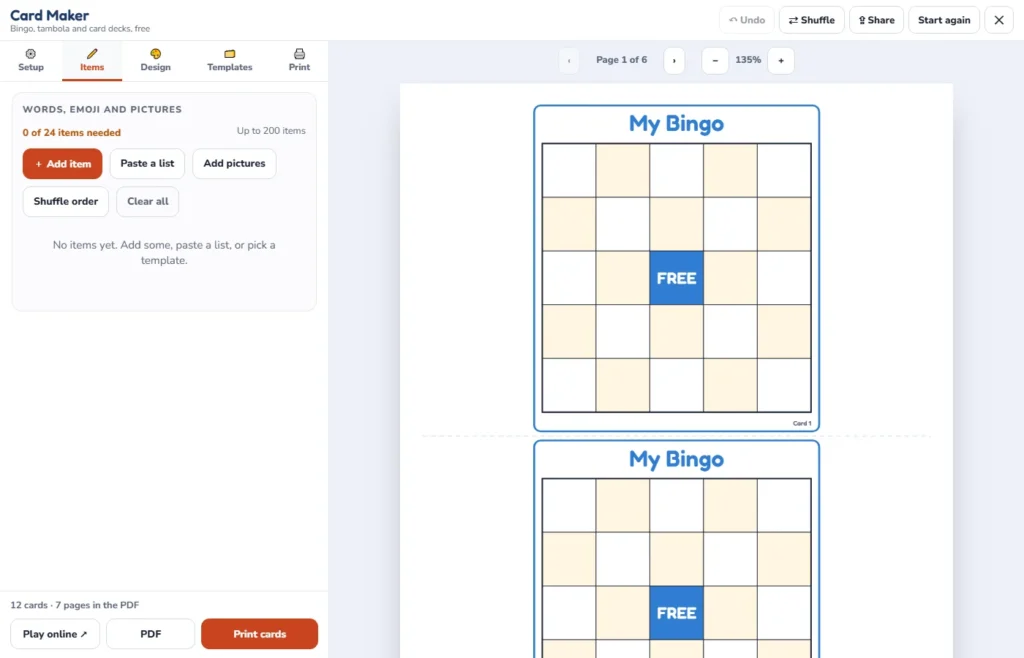
The shortest answer to how to make bingo cards is a card maker, because it was built for this one job. On this site the bingo card generator opens in full screen with five tabs: Setup, Items, Design, Templates and Print. The steps are the same for words, emoji, numbers and pictures.
- Pick a card type in Setup. Choose a custom card for your own words, or a 75-ball, 80-ball or 30-ball numbered card. Pick the grid size from 3 by 3 to 7 by 7.
- Add your items. Use Add item for one square at a time or Paste a list to drop in a whole list, one word per line. The tab tells you how many more items you need, for example “0 of 24 items needed”.
- Add pictures or emoji if you like. Each square can hold a word, an emoji, your own picture, or a picture with a caption.
- Design the card. Choose a color theme, a font, text size, borders and rounded corners, a title, a footer line and a background, or upload a logo.
- Print. Choose 1 to 100 different cards, 1, 2, 4 or 6 per page, Letter or A4 paper, portrait or landscape, and optional cut guides, a caller sheet and calling cards. Download the PDF or print directly.
- Play. The Play online button turns the same list into a live game with a host screen.
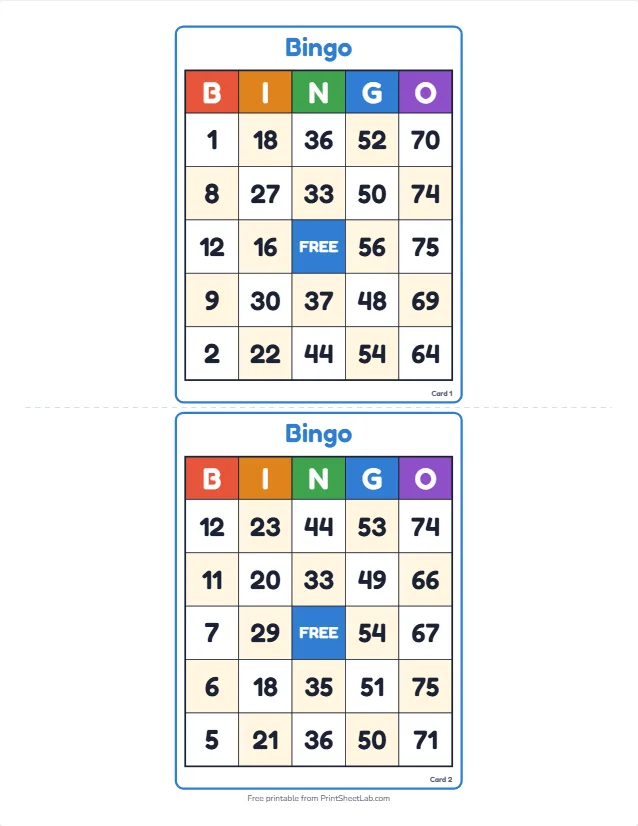
Everything is shuffled by the browser’s random number generator, nothing is uploaded, and no sign-up is required. If you want ideas instead of a blank page, the printable bingo cards hub has ready-made lists for occasions from baby showers to classrooms, and each one opens in the same card maker so you can edit it. For the bingo card template with Word-friendly and PDF versions, there is a dedicated page.
Bingo cards with pictures for children who cannot read yet
How to make bingo cards with pictures is a common question from teachers, because pictures are the right choice for children who cannot read yet, for second-language classes and for any game where the words would give the answer away. You have three ways to build them.
In a word processor, you paste a picture into each square and resize it, which works but takes time. In a design app you drag pictures onto a grid. In the card maker you use emoji, upload your own photos or drawings, or pick one of the picture templates for animals, fruit or feelings.
For picture cards, a few rules help. Use square or near-square pictures so they fill the squares evenly. Keep the style consistent, all photos or all drawings, because mixed styles distract. Add a short caption under each picture for children who are learning to read, and print one card as a reference sheet for the caller so you know which picture matches which word. The picture bingo for kids page has ready-made sets with their own online game.
How many words do you need when you make bingo cards?
The first rule of how to make bingo cards is the word count. A 5 by 5 card with a free center needs 24 words, but a list of exactly 24 gives every card the same words, and that creates a problem. When all cards hold all the words, the only thing that differs is where each word sits, so cards win almost together, and ties are common.
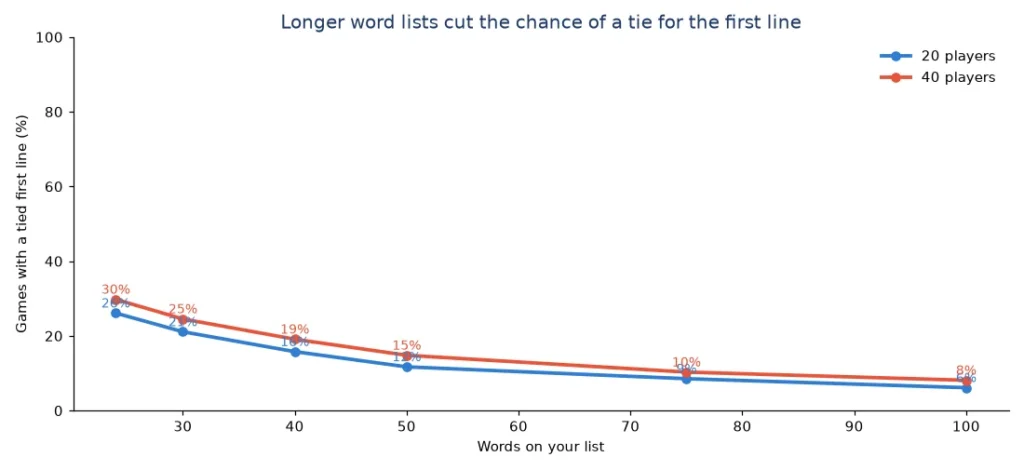
We simulated thousands of games to see how much a longer list helps. In each game the words are called in a random order, every player has a random card, and the simulation records the call on which the first player completes a line and whether two or more players finish on that same call.
| Words on the list | Different cards possible | Calls until the first line with 20 players (median, middle half) | Games with a tied first line, 20 players | Games with a tied first line, 40 players |
|---|---|---|---|---|
| 24 | 6.2 × 10²³ | 8 (7 to 9) | 26% | 30% |
| 30 | 3.7 × 1029 | 10 (9 to 11) | 21% | 25% |
| 40 | 3.9 × 1034 | 13 (11 to 14) | 16% | 19% |
| 50 | 7.5 × 1037 | 15 (13 to 18) | 12% | 15% |
| 75 | 1.6 × 1043 | 22 (19 to 26) | 9% | 10% |
| 100 | 4.9 × 1046 | 29 (24 to 34) | 6% | 8% |
Two things stand out. First, with exactly 24 words, about one game in four has a tie for the first line with 20 players, and about three in ten with 40. Second, a list of 40 to 50 words cuts that to roughly one game in six or seven and also makes the game last longer, because a single card holds only 24 of the 40 or 50 words, so lines take more calls to complete.
The number of different possible cards is never the problem. Even 24 words can be arranged in 24! ways, which is more than 6 × 10²³. The ties come from every card containing every word.
A practical rule for how to make bingo cards follows from these numbers: use about twice as many words as the card has squares, so 48 to 50 words for a 5 by 5 card. A 30-word list is acceptable for a short game with young children, who may need the quick win. When you want a longer game, add words. When you need a faster one, take some away.
Layout and printing tips for readable cards
Whichever tool you choose, a few layout choices decide whether cards are pleasant to play with.
- Make squares equal and big. Squares around one inch or 2.5 centimeters work for single words. Longer phrases need more space or a smaller font.
- Keep words short. One or two words fit best. If you need a longer phrase, shorten it to the key word and explain it on the caller sheet.
- Use a plain, readable font. Decorative fonts look good in a title but slow players down in the squares.
- Mark the free space. Shade or color it so players find it at once.
- Number the cards. A small number in the corner lets the caller find a winning card quickly. The card maker prints a card number on each card.
- Print one extra card. Keep it as the master copy and for settling disputes.
- Test-print one page first. Check the margins, the paper size (Letter or A4) and whether the text fits before you print thirty.
If you plan to run the game with a caller, print the numbers or words the caller will use too. The bingo caller handles numbered games, and the calling cards option in the card maker prints a set of word or picture cards for custom games. Guidance for hosting is in how to play bingo, and a list of winning shapes is in the bingo patterns guide. If you are making cards for a classroom, bingo activities for the classroom has lesson ideas for each list.
Common mistakes that spoil a set of cards
- Too few words. A list of 24 gives identical word sets and many ties. Use at least 30, and ideally close to 50.
- The same arrangement on every card. Copying and pasting a card without shuffling is the most common reason a game ends with five winners at once.
- Long phrases in small squares. Text that has to shrink becomes unreadable at a table. Shorten it or use a larger grid.
- Forgetting the free space on odd grids. Without it a 5 by 5 card needs 25 words and every square must be called before a full card is complete, which makes games longer.
- Not checking the print preview. A word table that spills over a page break is annoying at the party. Check before you print the full set.
- Using a copyrighted picture set. If you share cards publicly, use pictures you made, own or have permission to use.
Which method should you choose?
Use a word processor when you need one or two cards and already have the file open. Use Google Docs when several people need to edit the same list. Use a spreadsheet when you are comfortable with formulas and want full control of the layout. Use a design app when the look of the card matters more than the number of cards.
Use the bingo card generator when you want different cards for every player in a couple of minutes, with numbers, words, emoji or pictures, and a PDF ready to print. The two work together too: design the background in a design app, then bring it into the card maker as a picture.
Frequently asked questions
10 quick answers
How to make bingo cards for free?
Use a free tool: a word processor with a 5 by 5 table, a spreadsheet with a shuffle formula, or a free browser-based card maker. The card maker on this site needs no account and prints different cards for each player.
How many words do I need for a set of bingo cards?
A 5 by 5 card with a free center needs 24 words. Use 30 to 50 so that each card holds a different set of words and ties are less likely.
How do I make bingo cards in Word?
Insert a 5 by 5 table, set equal cell sizes, center the text, type 24 words and a free space, then copy the table and rearrange the words on each copy.
Can I make bingo cards in Google Docs?
Yes. Insert a 5 by 5 table, set the column width and row height, center the text and fill in the words. Copy the table for more cards.
Is there a bingo card template Excel file?
You can build one in minutes: a word list in one column and a formula that shuffles it into a 5 by 5 block. The guide above has the formula for current Excel and Google Sheets and a simple version for older ones.
Can I make bingo cards in Canva?
Yes, by starting from a bingo template and editing each square. Making many different cards takes repeated editing unless your plan offers a bulk feature, so check what yours includes.
How do I make bingo cards with pictures?
Paste a picture into each square in a word processor, or use a card maker that accepts emoji and your own pictures. Keep the pictures square and in one style.
How to make bingo cards so that every card is different?
Shuffle the order of the words for each card. A spreadsheet formula or a card maker does this with a random number generator, which is more even than shuffling by hand.
How to make bingo cards for a large group?
Use a card maker that prints up to 100 different cards in one PDF, choose two or four per page, and number the cards so the caller can check winners.
Can I use the cards to play online?
Yes. The card maker has a Play online button that turns your list into a live game with a host screen, and the number caller handles numbered games.